Paper receipts are easy to lose, difficult to organize, and often become unreadable over time. If you regularly keep receipts for personal expenses, business purchases, returns, or warranty records, scanning them with your iPhone can turn a pile of paper into an organized digital record.
The good news is that you do not need a complicated scanner or desktop accounting system. With the right receipt scanning app, your iPhone can capture a receipt, recognize important information, and help you organize the expense in seconds.
What Is a Receipt Scanner?
A receipt scanner is an application that uses your phone's camera and optical character recognition (OCR) technology to turn information printed on a receipt into digital data.
Instead of keeping only a photograph of a receipt, an OCR-based scanner can identify information such as:
- Merchant or store name
- Purchase date
- Products or items
- Subtotal
- Tax or VAT
- Total amount
- Currency
This makes the receipt searchable and much easier to manage than a simple photo.
How to Scan a Receipt on iPhone
The basic process is simple.
1. Open a receipt scanning app
Choose a receipt management application that supports receipt scanning and OCR.
For sensitive financial documents, it is also worth checking how the application handles your data before scanning your receipts.
2. Take a photo of the receipt
Place the receipt on a flat, well-lit surface.
Try to make sure that:
- The entire receipt is visible.
- The text is in focus.
- There are no strong shadows.
- The receipt is not folded over important information.
- The camera is positioned as straight as possible.
Good lighting and a clear image generally make text recognition easier.
3. Let OCR read the receipt
OCR stands for Optical Character Recognition.
Instead of treating the receipt as only an image, OCR analyzes the characters and attempts to convert printed information into structured text.
For example, a receipt might contain:
Store: Example Market
Date: September 21, 2026
Subtotal: $42.00
Tax: $4.20
Total: $46.20
An OCR-enabled receipt scanner can use this information to create a digital record.
4. Review the extracted information
OCR can make the process much faster, but it is still a good practice to review important financial information.
Check the:
- Merchant
- Date
- Items
- Tax
- Total
- Currency
If something was not recognized correctly, a good receipt management app should allow you to edit the information manually.
5. Organize the expense
Once the receipt has been scanned, you can categorize the expense and add notes or other useful information.
This becomes particularly useful when you have dozens or hundreds of receipts.
Instead of searching through a photo library, you can search and filter your receipts by information such as merchant, category, date, or amount.
Why Use an iPhone Instead of Keeping Paper Receipts?
Paper receipts create several problems.
They can be:
- Lost
- Damaged
- Faded
- Difficult to search
- Difficult to organize
- Easy to forget
A digital receipt system can make information much easier to retrieve.
For example, imagine that you need to find a purchase from three months ago.
With paper receipts, you may need to search through a drawer, folder, or wallet.
With a digital receipt manager, you can search your stored records instead.
What About Receipt Photos in the Photos App?
Taking a photo of every receipt is better than losing the original, but a photo library is not designed specifically for financial records.
A normal photo does not automatically give you a structured expense record.
You may still need to remember:
- Where you purchased the item
- When you purchased it
- How much you paid
- Which category it belongs to
- Whether the purchase has a warranty
- Where the original receipt is located
A receipt management app can connect these pieces of information into a more useful record.
Is Receipt OCR Safe?
Privacy is an important consideration because receipts can contain financial and personal information.
Before choosing a receipt scanner, check whether receipt images and extracted information are uploaded to external servers.
There is a significant difference between processing information locally on your device and sending documents to a cloud service.
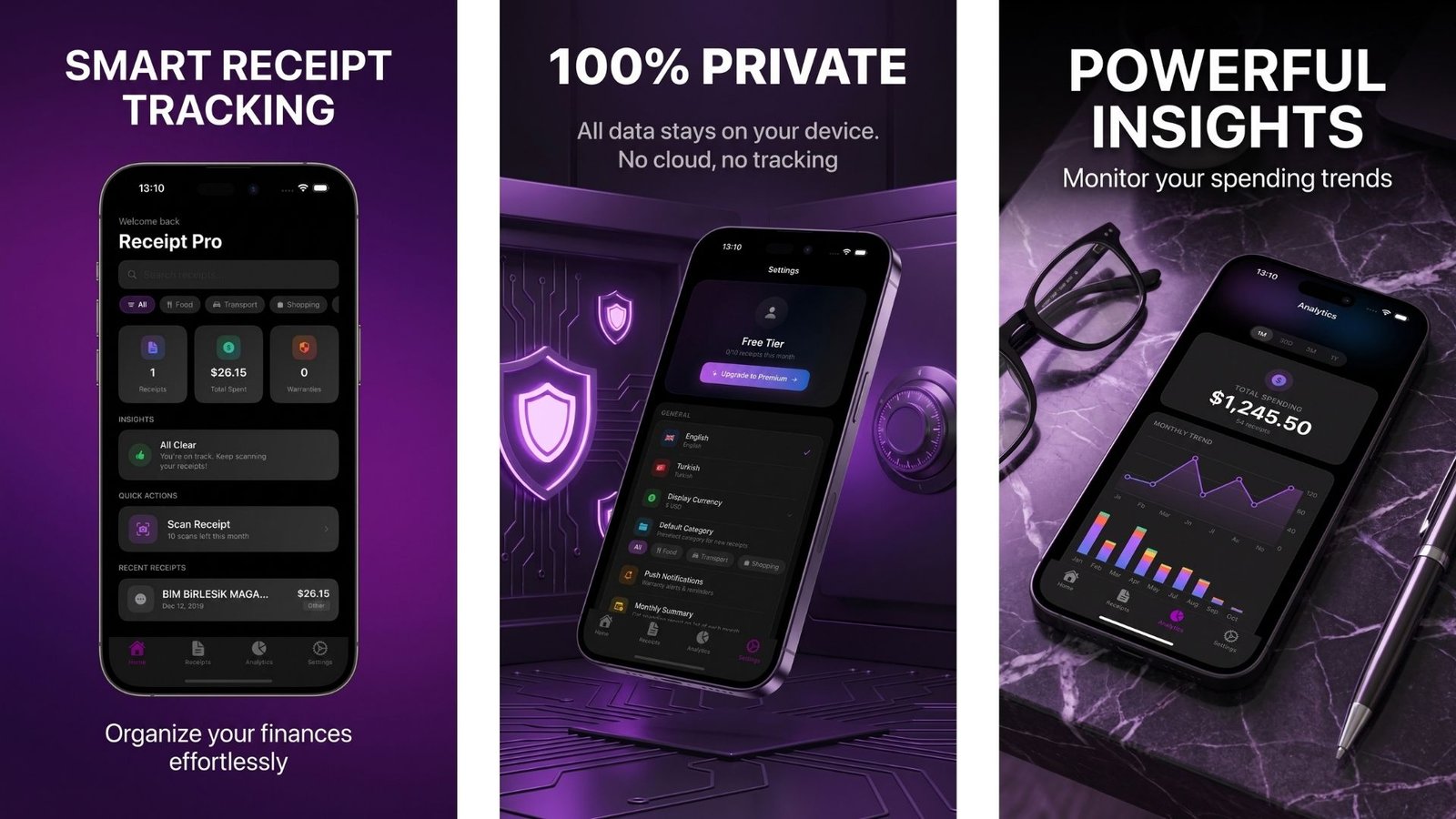
Receipt Pro is designed around local processing. Its product documentation states that receipt OCR runs on-device, receipt images are not uploaded to external servers, and receipt data is stored locally.
Apple's App Store listing also states that the developer reports no data collection for Receipt Pro.
How Receipt Pro Scans Receipts on iPhone
Receipt Pro combines receipt scanning with expense management.
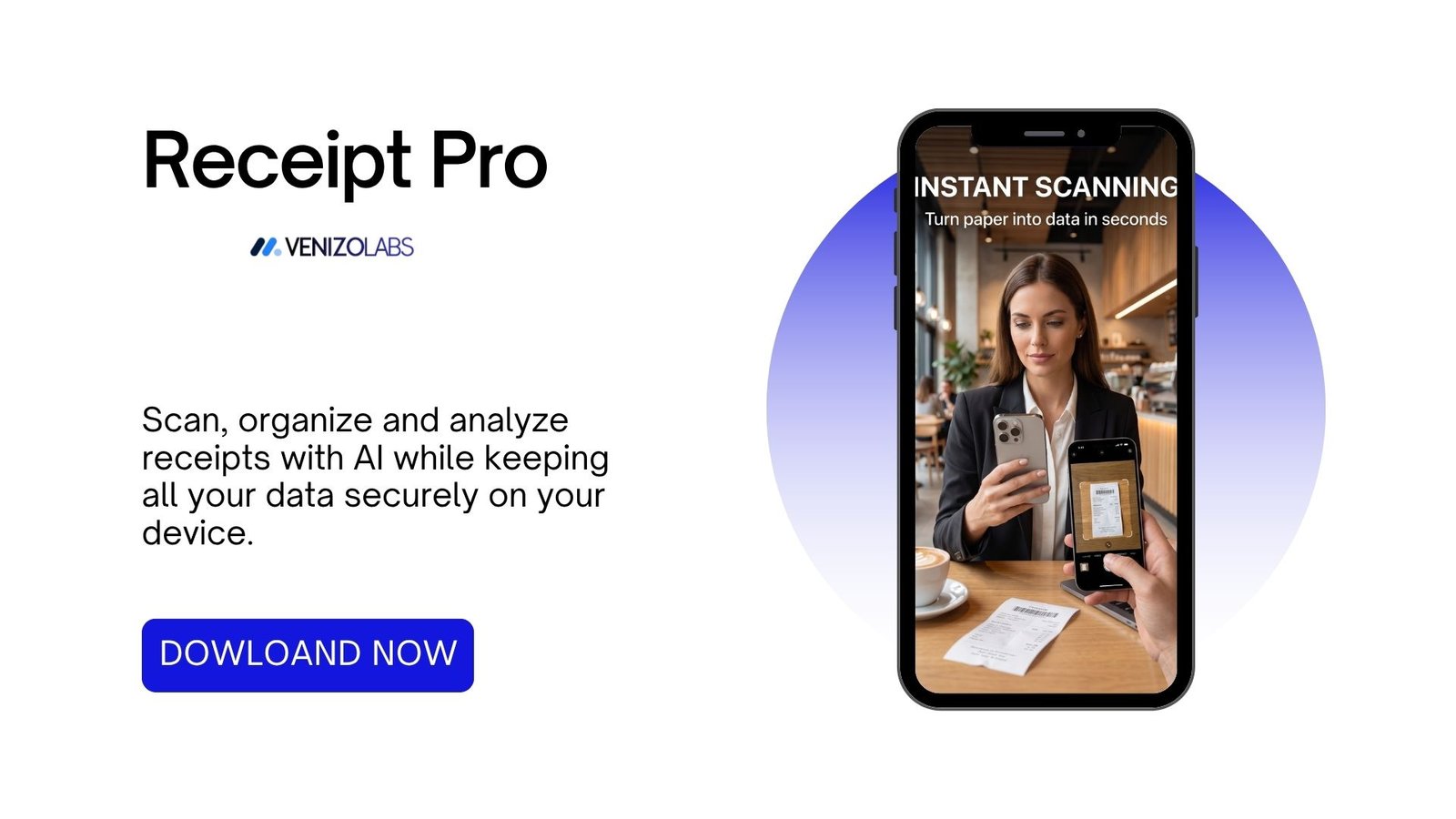
You can photograph a receipt or select an existing receipt image. Receipt Pro uses Apple's Vision OCR technology to identify information including the merchant, purchase date, items, subtotal, tax, and total amount.
The app can then help you:
- Organize receipts
- Categorize expenses
- Search and filter records
- Analyze spending
- Track product warranties
- Create PDF reports
- Export data as CSV
Receipt Pro also supports offline receipt processing, including scanning, OCR, expense analysis, PDF export, and CSV export. Internet access is only required for subscription-related operations according to its product documentation.
Who Can Benefit From a Receipt Scanner?
A receipt scanner can be useful for many different situations.
Personal finance
Keep everyday purchases organized and make it easier to review spending.
Freelancers
Separate business expenses from personal purchases and keep digital records of expenses.
Small businesses
Maintain a searchable record of business purchases and generate expense reports when needed.
Students
Keep receipts for electronics, equipment, books, travel, and other purchases.
Families
Organize household purchases and keep important receipts available for returns or warranty claims.
A Better Way to Manage Receipts
Scanning a receipt is only the first step.
The real advantage comes from turning a paper document into a searchable, organized digital record.
A useful receipt management system should make it easy to:
- Scan the receipt.
- Extract important information.
- Correct or edit the data.
- Categorize the expense.
- Search and filter receipts.
- Review spending.
- Keep warranty information organized.
- Export records when necessary.
If you regularly deal with receipts, moving from paper storage or a simple photo library to a dedicated receipt management system can make the process considerably easier.
Try Receipt Pro
Receipt Pro is built for people who want to scan, organize, and analyze receipts directly from their iPhone while keeping receipt processing local to the device.
It combines AI-assisted receipt scanning, Apple Vision OCR, expense categorization, spending analytics, warranty tracking, PDF reports, CSV export, offline processing, and local storage in one application.
If you want to turn your iPhone into a practical digital receipt manager, you can explore Receipt Pro on the App Store.
Receipt Pro — Scan. Organize. Understand your spending.
[Download Receipt Pro on the App Store]
FAQ
Can I scan receipts with an iPhone?
Yes. A receipt scanning app can use the iPhone camera to capture a receipt and OCR technology to extract information from it.
What information can OCR extract from a receipt?
Depending on the receipt and OCR system, information can include the merchant, date, items, subtotal, tax, total amount, and currency.
Can I scan receipts without uploading them to the cloud?
Yes. Some receipt scanning apps process OCR directly on the device. Receipt Pro is designed for on-device receipt processing and local data storage.
Can receipt scanning apps track expenses?
Yes. Some apps can convert scanned receipt information into expense records and provide categories, search, filters, and spending analysis.
Can I use Receipt Pro offline?
Receipt Pro supports offline receipt scanning, OCR, expense analysis, PDF export, and CSV export.
Can Receipt Pro track warranties?
Yes. Receipt Pro includes product warranty tracking, warranty expiration calculation, and reminder functionality.